
API Explorer
Automobilista 2 Dedicated Server includes an HTTP API that supports some level of control but more importantly allows users to query some key information needed to configure the server, for example the native config requires numeric IDs for vehicles and tracks. Many of the native config settings are enumerated values that need to be queried.
An important thing to note is that these values may differ from build to build, as we found when first setting up our own AMS2 dedicated server. Therefore it is important to be able to get the values from your own build and the API Explorer makes this easier.
A complete set of game data is shipped with the application and is used throughout the application by default, so you many never need to use API Explorer. However if after using Config Builder to configure your serve, you have problems running your server, the first thing you should do is ensure the cached game data matches your specific build of AMS2 Dedicated Server. To do this you will need to configure your server to enable the HTTP API.
Enabling HTTP API
By default the HTTP API of AMS2 Dedicated Server is disabled and the default configuration only allows access from the same computer. This is fine if you are self hosting the server and running our application on the same computer, but if you need to access your server remotely, perhaps like us you use a hosting provider, then you will need to manually edit the server.cfg to allow remote access and add some basic security.
A word of warning, the API only supports HTTP not HTTPS so there is no encryption of passwords sent to the server. We strongly recommend you do not leave the HTTP API enabled any longer than needed, as soon as you have the information you need, disable the API and restart your server.
The following config extract will enable the HTTP API with basic username/password security. Feel free to change the username and password in the last two sections.
enableHttpApi : true

httpApiExtraHeaders : {
    "*" : "Access-Control-Allow-Origin: *"
}

httpApiAccessLevels : {
	"*" : "admin"
}

httpApiAccessFilters : {
   "public" : [
        { "type" : "accept" }
    ],

    "private" : [
        { "type" : "ip-accept", "ip" : "*" },
        { "type" : "group", "group" : "admin" },
        { "type" : "reject-password" }
    ],

    "admin" : [
        { "type" : "ip-accept", "ip" : "*" },
        { "type" : "group", "group" : "admin" },
        { "type" : "reject-password" }
    ],
}

httpApiUsers : {
    "APIBoss" : "APIadm1n"
}

httpApiGroups : {
    "admin" : [ "APIBoss" ]
}
Configure API Explorer
To synchronise the local game data with your actual server you will need to configure API Explorer by adding a Server Connection. For this you will need the IP Address and Port the HTTP API is configured to use as well as the username and password you configured.
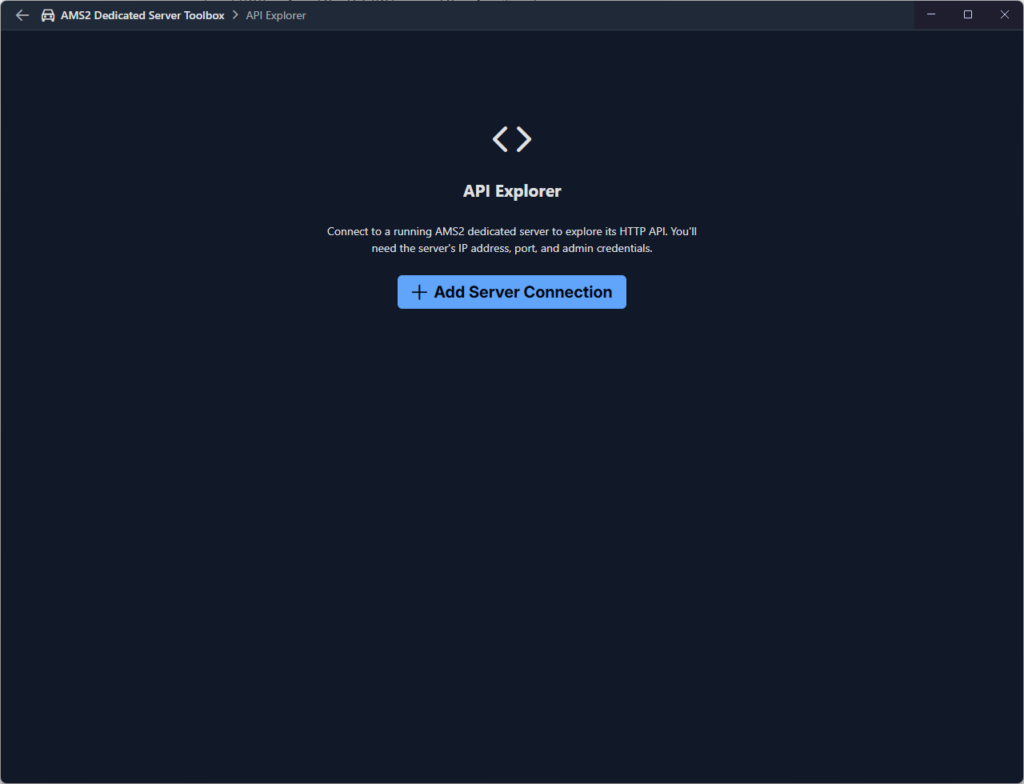
In the API Explorer click the Add Server Connection button.
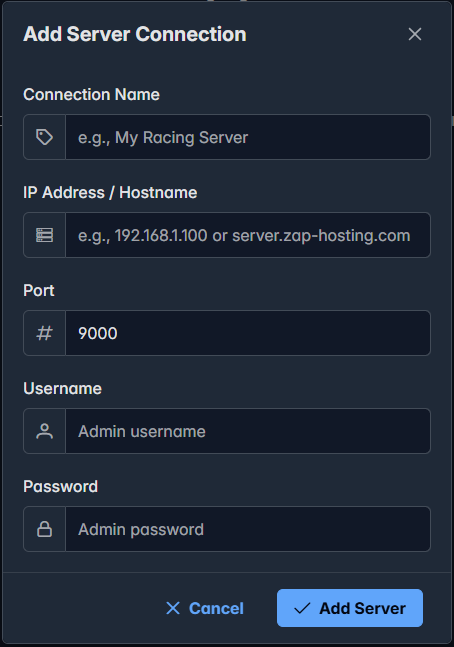
Complete the form and click the Add Server button
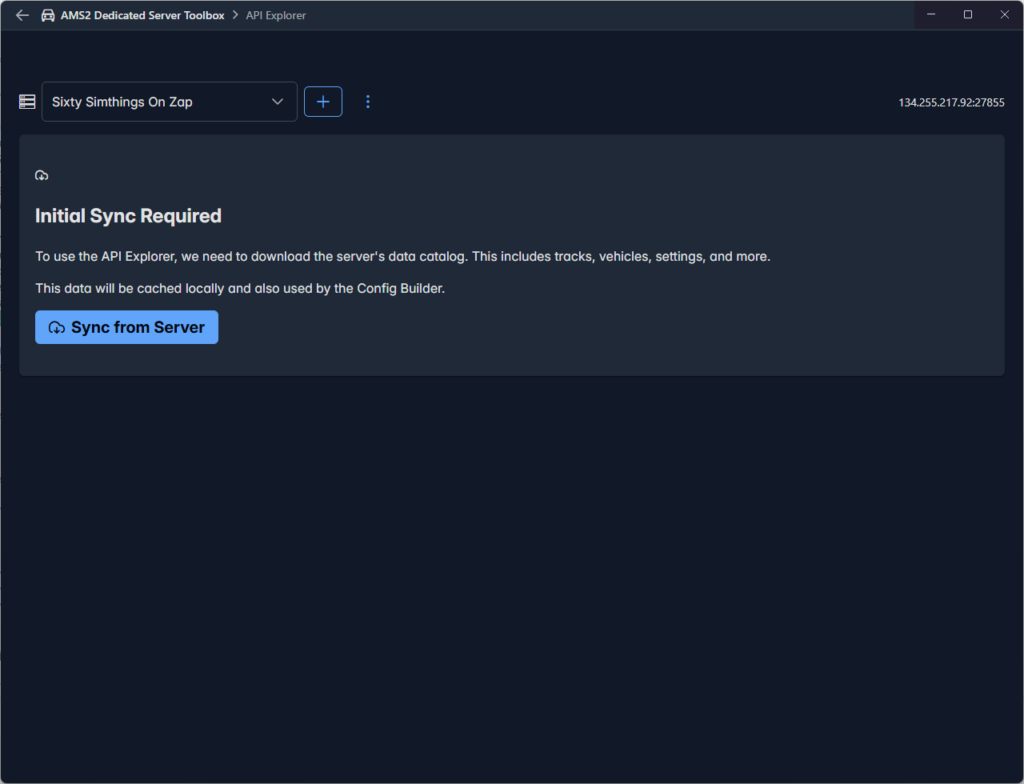
Click the Sync from Server button to pull the data from the server and update the local copy of game data.
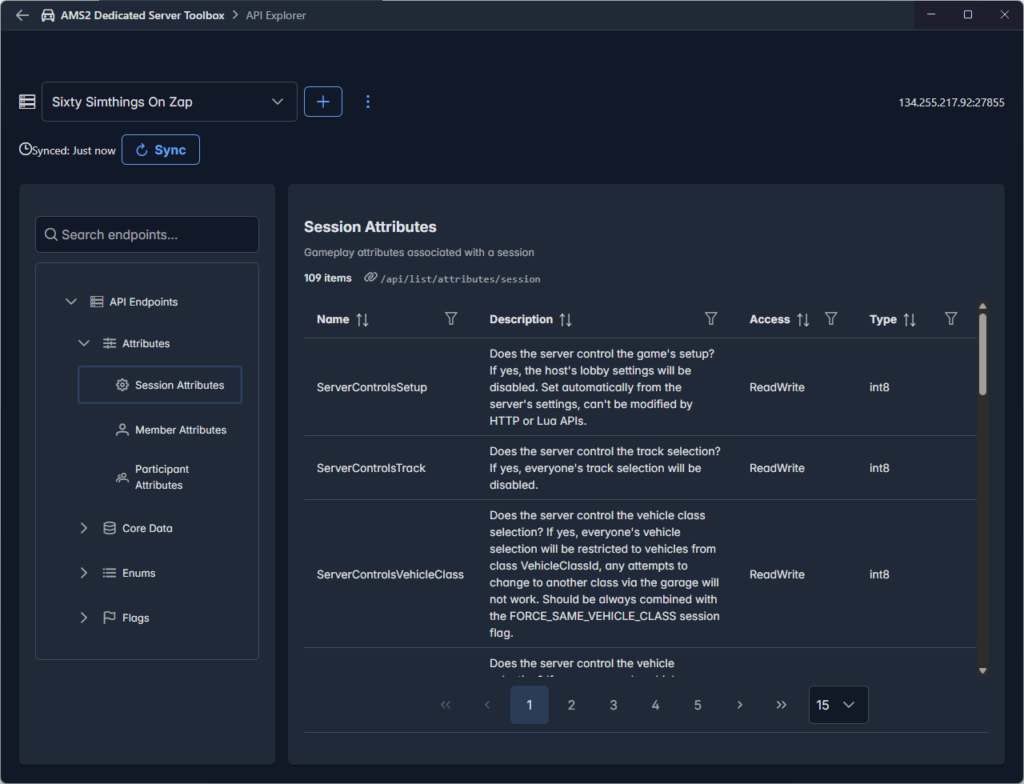
Once the sync is complete you can use the tree panel on the left to locate a node and select it. The right panel will display a data table of the data available at the corresponding end point.
You can add multiple servers if you wish. If the AMS2 Dedicated Server package is every updated and you install the update, return to API Explorer and hit the Sync button. Of course you will need to make sure you have enabled the HTTP API first.