
Config Builder
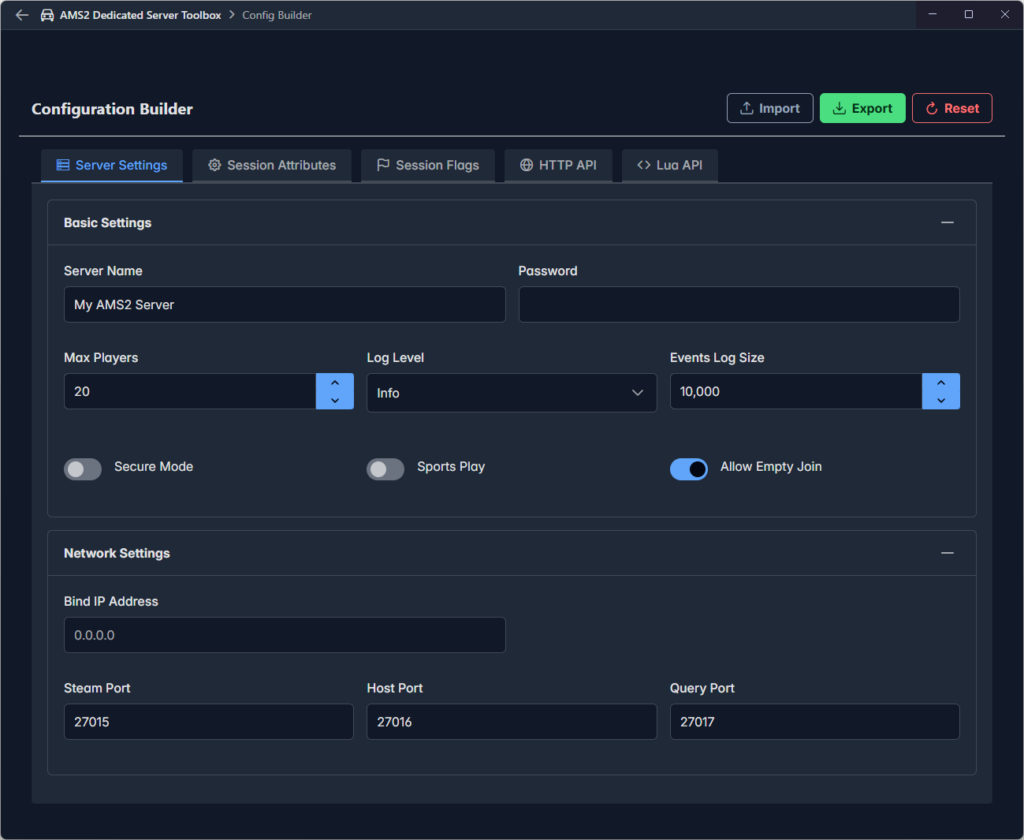
AMS2 Dedicated Server Toolbox provides Config Builder to help you create valid configuration files (server.cfg) to control how your dedicated server operates. It allows you to create files from scratch or to import an existing file and tweak it. Once you have the desired settings you can export to a file.
If you attempt to export a file with the name server.cfg, Config Builder will make a backup of any existing file with that name adding a timestamp. This allows you to easily rollback to a previous configuration.
Settings are separated into 5 tabs
- Server Settings
- Session Attributes
- Session Flags
- HTTP API
- Lua API
Server Settings
Settings on this tab define the server, how it appears in the lobby and how user access it. These settings are typically found at the beginning of configuration file and have been stable in server builds for some time.
Session Attributes
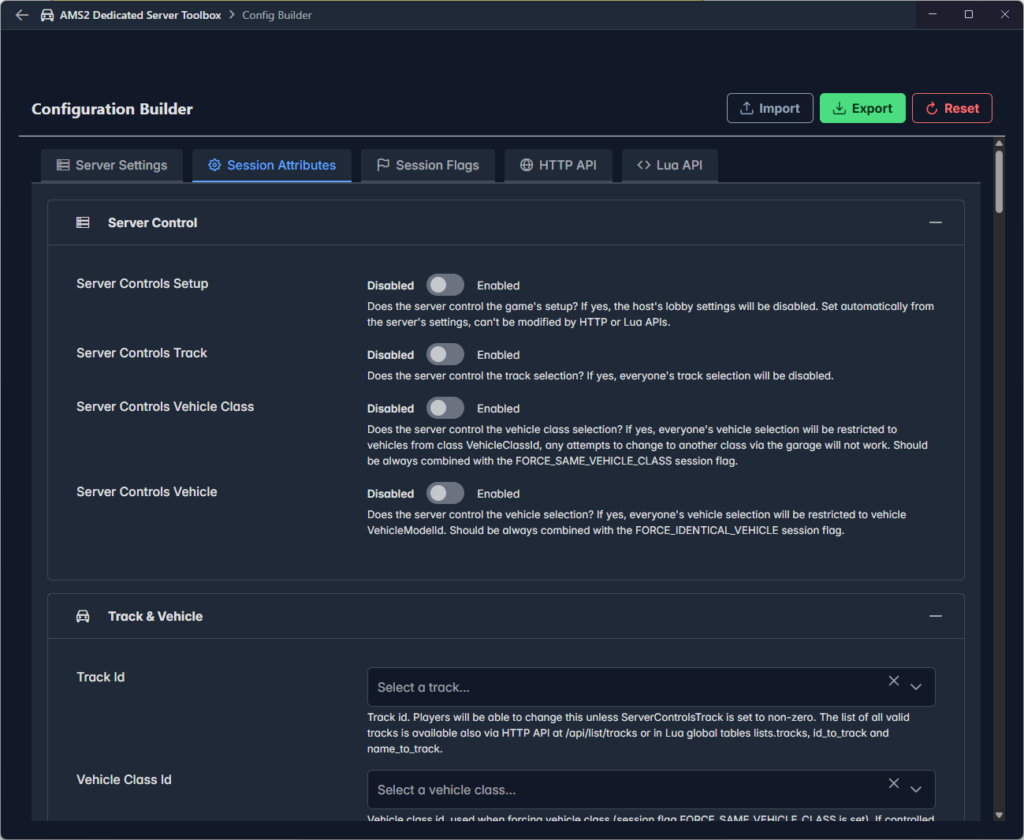
The Session Attributes tab is dynamically populated from information provided by the cached version of the game data, whether that is the default built in to the app or an updated version after you sync with your server via the HTTP API.
Where settings require a numeric ID a selector control is rendered allowing you to pick the setting value by name. ID numbers are shown alongside the name.
Where settings require a 1 or 0 to indicate on/off or true/false a switch control is rendered to make it obvious.
For all settings the help text provided by the HTTP API is rendered adjacent to the setting.
While developing the application we were surprised how many settings were available that are not documented or mentioned anywhere else.
Session Flags
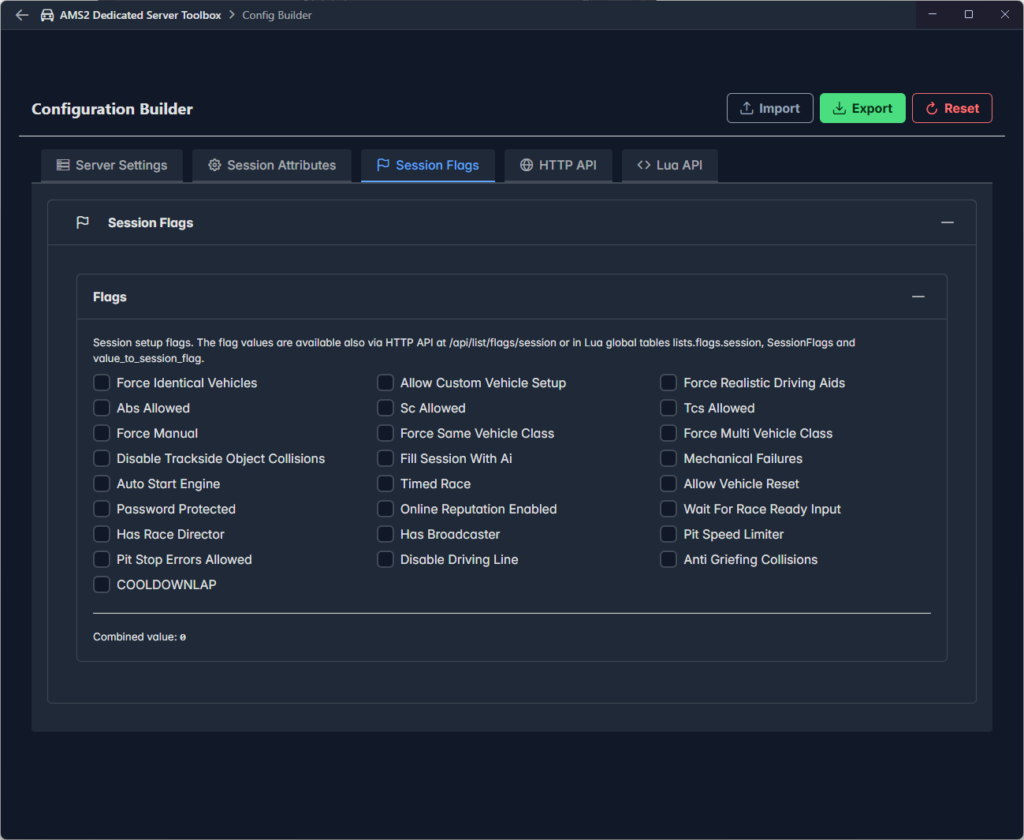
Once crucial field within the server configuration file is a numeric value representing a combination of binary 1s and 0s that are either on or off. This technique is common in software development as it allows a lot of values to be stored in a small amount of memory. The efficiency comes with a price, discovering what values mean can be tricky.
The Session Flags tab is dynamically populated from information provided by the cached version of the game data, whether that is the default built in to the app or an updated version after you sync with your server via the HTTP API.
For each flag value provided in the game data a checkbox is provided labelled with a human readable name. Ticking a box enables that flag clearing it disables the flag.
As you tick the boxes the value required for the flags setting is displayed below the panel and this value is used when you export to a file.
HTTP API
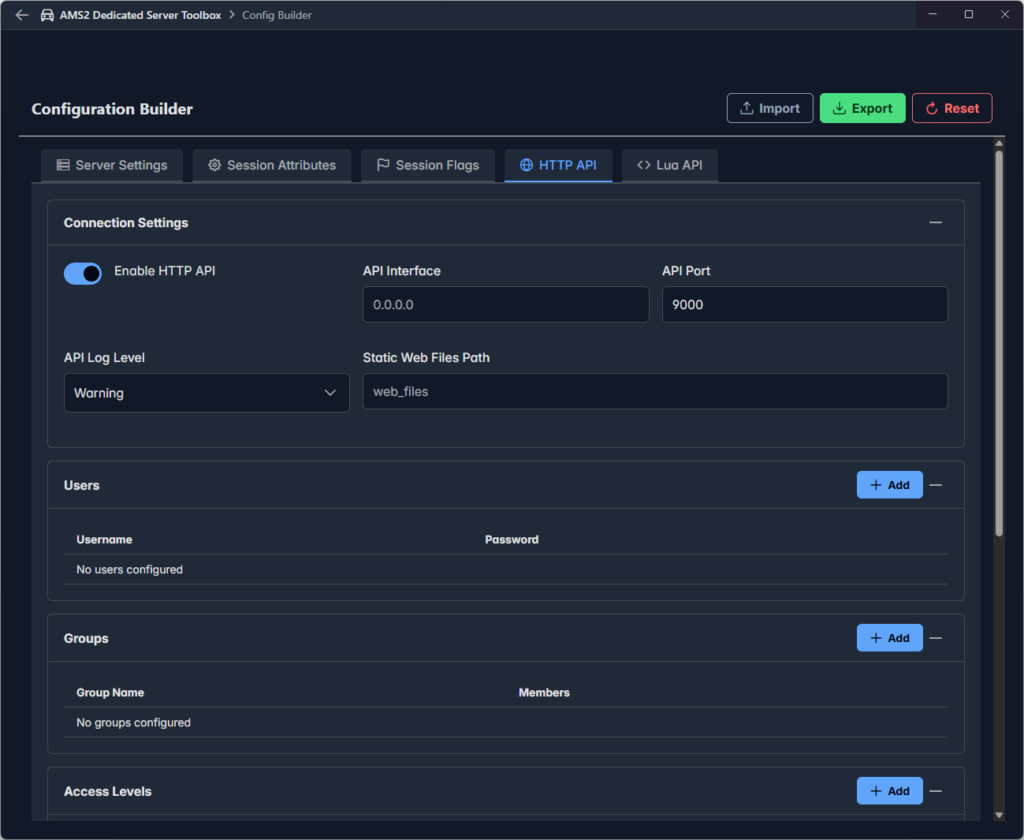
The HTTP API tab allows you to enable or disable the HTTP API built in to AMS2 Dedicated Server. How the configuraiton works is beyond the scope of this document but it is well documented in the server guide and sample configs provided with the server application.
When you enable the HTTP API it is important to secure the end point as much as possible within the limitations of the API. On this tab you can defined Usernames and Passwords, place the users in Groups, define levels of access then define rules that control access to each level. The HTTP API tab supports all of these tasks.
Lua API
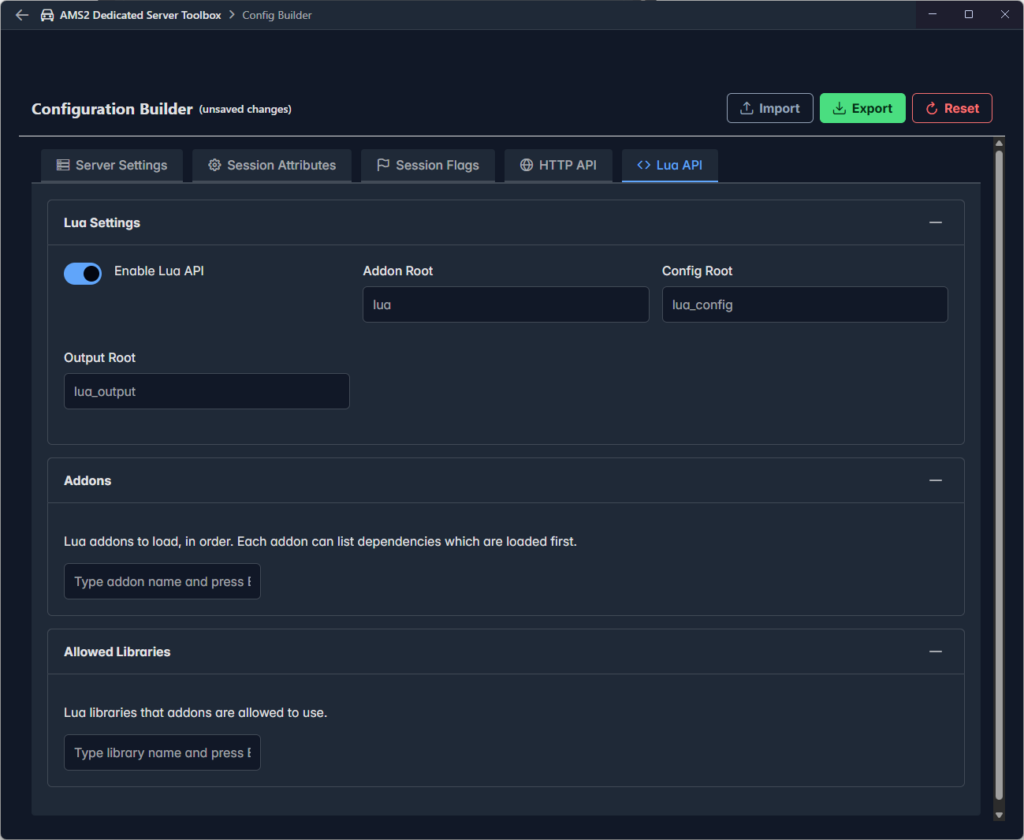
The AMS2 Dedicated Server can be extended through the use of plugins created using the Lua programming language. Three plugins that are commonly used are bundled with the server application and usually enabled by default.
- sms_base
- sms_rotate
- sms_stats
In the most recent builds of the server application these are configured through separate files, in earlier versions the configuration could be included in the server.cfg file. At this point we do not support the embedded configuration and configuring the plugins is outside the scope of our application at the moment.
The Lua API tab allows you to control whether Lua Plugins are enabled and which ones. Additionally it allows you to specify external libraries that Lua plugins depend on.
The server guide and config samples provided with the server application are good sources of information on the individual Lua plugins and how to configure them.
Tips
If you are new to AMS2 Dedicated Server start by reading the server guide that comes with the server application package. Then we suggest you import the sample configs provided with the server package into Config Builder then browse the tabs to see what settings each includes.
A good way we found to manage our server was to create configuration templates, similar to the samples provided, templates can give you a good starting point, then with a few tweaks you have the configuration you need for your next event.